What You’ll Learn in This Article:
✅ Exactly which 7 websites save the most time for students, freelancers, and professionals in 2026
✅ What each tool actually does — no jargon, just plain English
✅ Real use cases: who uses them, how, and why they work
✅ Which free tools are genuinely free — no hidden paywalls
Last year, a friend of mine spent four hours trying to compress a PDF, remove a background from a product photo, and design a simple Instagram post — all for a single freelance project.
Four hours. For three tasks.
I showed him three websites. He finished the same work in 22 minutes.
That gap — between people who know these useful websites that make your work easier and people who don’t — is wild. Because most of these tools are completely free, work right in your browser, and require zero technical knowledge.
You don’t need to download software. You don’t need to learn design. You just need to know where to go.
This guide covers the 7 most genuinely useful websites in 2026 — the ones that actually save time, not the ones that just promise to. Each one has been tested, each one is free to use at a basic level, and each one will make at least one thing in your work life noticeably faster.
Let’s get into it.
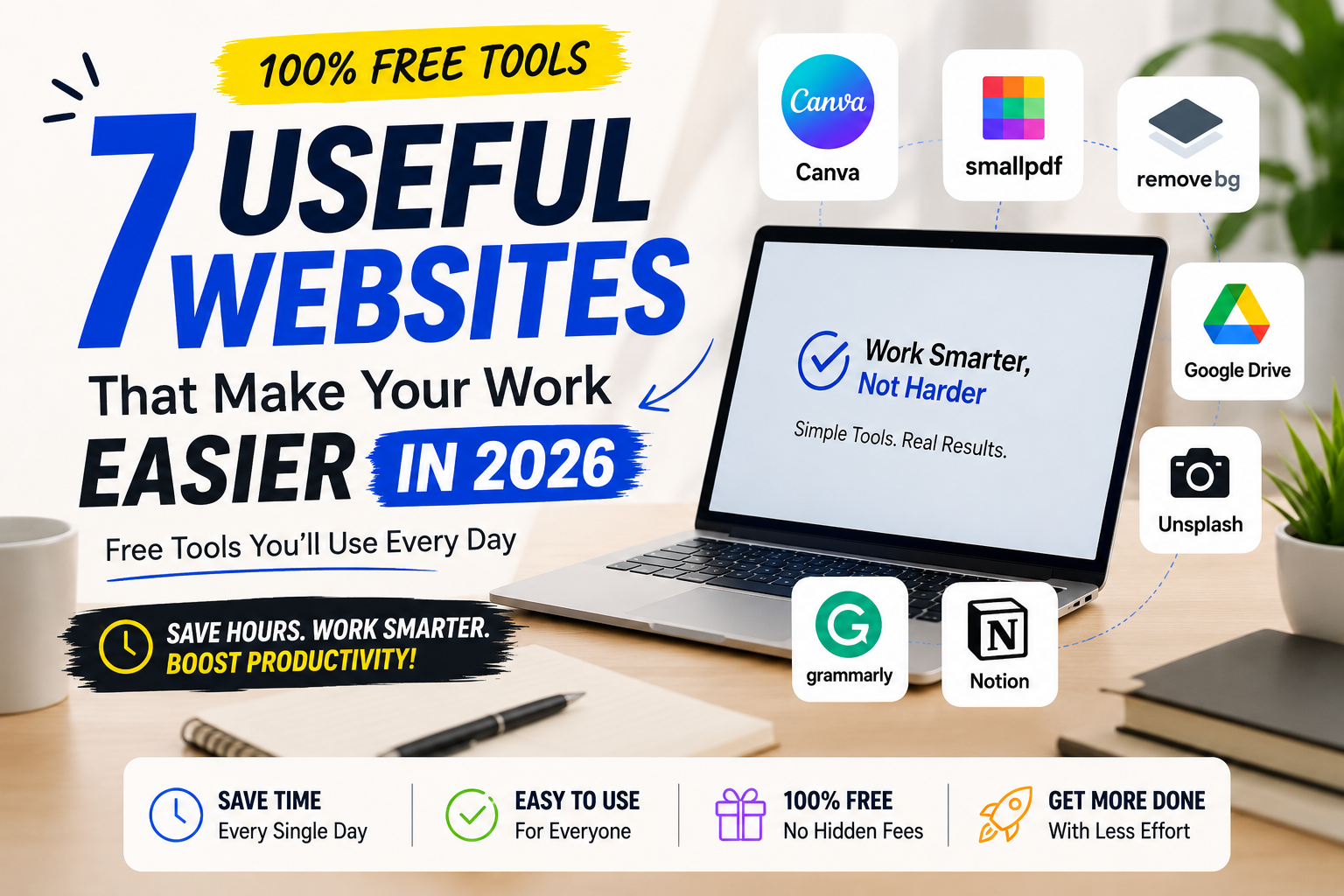
7 Useful Websites That Make Your Work Easier in 2026
1. Canva — Professional Designs Without a Designer
Best for: Students, content creators, bloggers, small business owners
Free plan: Yes — generous and actually usable
Time saved: 2–3 hours per design project
Before Canva existed, creating a decent-looking poster meant either hiring a designer or spending weeks learning Photoshop.
Now? You open a browser, pick a template, change the text and colors, and download. That’s genuinely it.
Canva in 2026 has over 3,000 free templates — YouTube thumbnails, Instagram posts, resumes, presentations, business cards, blog banners. The drag-and-drop interface is so intuitive that most people figure it out without reading a single tutorial.
What you can actually do on the free plan:
- Create unlimited designs
- Access 3 million+ free photos, graphics, and fonts
- Download in PNG, JPG, or PDF
- Collaborate with team members in real time
Real use case: A food blogger in Austin uses Canva to create all her Instagram content and blog featured images. She spends about 15 minutes per post. Before Canva, she was outsourcing the same work for $20 per image.
One thing people miss: Canva has a brand kit feature — you set your brand colors, fonts, and logo once, and every design automatically pulls from it. Huge time-saver if you’re creating content consistently.
Honest limitation: The free version doesn’t include background removal or premium elements. Canva Pro is $13/month — worth it if you’re creating content professionally, totally skippable if you’re just starting out.
2. Smallpdf — Every PDF Task in One Place
Best for: Students, office workers, government form users, freelancers
Free plan: Yes — 2 tasks per hour
Time saved: 30–45 minutes per PDF task
PDFs are everywhere — college assignments, tax forms, client contracts, government documents. And PDF editing has always been unnecessarily painful.
Smallpdf fixes that. No software to install. No account required for basic tasks. Just go to the website, upload your file, and done.
What it does:
- Convert PDF to Word, Excel, or PowerPoint (and back)
- Compress a PDF without losing quality
- Merge multiple PDFs into one
- Split a large PDF into individual pages
- Add a password to a PDF or remove one
Real use case: A remote executive assistant in London uses Smallpdf every single day. She receives contracts as PDFs, edits them as Word documents, and sends them back as PDFs — all within Smallpdf. What used to require Adobe Acrobat Pro (expensive) now costs her nothing.
Pro tip: The compress feature is underrated. Most PDFs sent by email are unnecessarily large. Compressing before sending keeps inboxes happy and makes you look more professional.
Honest limitation: Free users can do 2 tasks per hour. For occasional use, that’s perfectly fine. For heavy daily use, the Pro plan ($9/month) makes more sense.
3. Remove.bg — Background Removal in One Click
Best for: E-commerce sellers, designers, freelancers, anyone with a passport photo emergency
Free plan: Yes — low-resolution downloads free, HD requires credits
Time saved: 1–2 hours per image (compared to manual editing)
Removing a background from a photo used to require Photoshop skills and patience. Remove.bg does it in literally three seconds using AI.
You upload the image. The AI detects the subject, removes the background, and shows you the result. You download it. That’s the entire process.
Where this actually gets used:
- Product photos for Amazon, Etsy, or Shopify — clean white backgrounds dramatically improve click-through rates and sales
- LinkedIn profile photos — professional headshots with transparent or solid backgrounds
- Passport and visa photos — cut the photo yourself before the professional prints it
- Posters, banners, and presentations — isolate subjects cleanly
Real use case: A seller on Etsy in Melbourne sells handmade jewelry. She photographs her pieces on her kitchen table and removes the background with Remove.bg. Her product images look like a professional studio shot them. Her conversion rate is consistently 3x higher than competitors selling similar items.
Pro tip: If you’re a blogger or content creator, use Remove.bg to isolate subjects from stock photos — then layer them over custom backgrounds in Canva. The combination of these two tools alone can produce genuinely professional visuals.
Honest limitation: Free downloads are lower resolution. For social media posts, that’s usually fine. For print or large displays, you’ll want to buy credits or use the API.
4. Google Drive — Your Work, Accessible Everywhere
Best for: Students, remote workers, freelancers, anyone who has ever lost a file
Free plan: 15GB — genuinely enough for most people
Time saved: Hours of panic when a device fails or a file goes missing
This one feels too obvious to include. But the number of people who still don’t use Google Drive properly is genuinely surprising.
Google Drive isn’t just cloud storage. In 2026, it’s a complete productivity suite — Docs (Word), Sheets (Excel), Slides (PowerPoint) — all free, all collaborative, all synced across every device you own.
What people actually use it for:
- Storing files with automatic backup — no more “I left it on my other laptop”
- Sharing documents with clients — a shareable link instead of an email attachment
- Collaborating in real time — multiple people editing the same document simultaneously, changes showing up instantly
- Keeping a running folder of everything — assignments, invoices, receipts, portfolios
Real use case: A freelance content writer in Toronto keeps every client project in a shared Google Drive folder. She sends the client a single link — they can see the brief, the draft, the revisions, and the final version all in one place. She gets fewer revision requests because everything is always visible and organized.
The feature most people ignore: Version history. Every Google Doc saves every version automatically. You can roll back to any previous version at any time. This has saved more projects than any other feature on this list.
Honest limitation: 15GB fills up faster than expected if you store videos or large Photoshop files. Google One storage starts at $2.99/month for 100GB — easy decision when you actually need it.
5. Unsplash — High-Quality Free Photos, No Copyright Stress
Best for: Bloggers, website owners, content creators, students making presentations
Free plan: 100% free — all photos, always
Time saved: 20–30 minutes of searching and worrying about copyright
Every blogger and content creator hits this wall: you need a photo for your article, you Google it, every image is either ugly or copyrighted, and stock photo sites want $15 per image.
Unsplash solves this completely. Over 3 million high-resolution photos, contributed by photographers worldwide, free to use for any purpose — commercial included.
What makes Unsplash different from a Google image search:
- Every photo is properly licensed for free use
- Resolution is professional (most are 5,000+ pixels wide)
- The aesthetic quality is genuinely high — these are photos photographers chose to share, not stock photo filler
- No attribution required (though it’s appreciated)
Real use case: A tech blogger in Singapore uses Unsplash for every single featured image and in-post photo. He hasn’t paid for a stock photo in three years. His site looks consistently polished because Unsplash’s quality bar is high.
SEO tip: When you download a photo from Unsplash, rename the file to include your target keyword before uploading it to your blog. Then write descriptive alt text. This is one of the easiest SEO wins that most bloggers consistently skip.
Honest limitation: Very popular niches (business, technology, food) have thousands of options. Hyper-specific niches (a specific city, a very specific product) sometimes have limited choices. For those cases, Pexels is a good backup — same free licensing, different photo library.
6. Grammarly — Your Writing, Without the Embarrassing Mistakes
Best for: Students, bloggers, professionals writing emails, non-native English speakers
Free plan: Yes — catches most important errors
Time saved: Time spent re-reading the same paragraph five times
Grammarly is one of those tools where you don’t fully appreciate how much it does until you turn it off for a day and suddenly realize how many small errors you were making.
It’s not just spellcheck. In 2026, Grammarly’s AI catches:
- Grammar errors (subject-verb agreement, tense consistency)
- Punctuation mistakes
- Unclear or overly complex sentences
- Passive voice overuse
- Tone — it tells you if your email sounds passive-aggressive when you meant to be professional
Real use case: A non-native English speaker in India uses Grammarly for every email she sends to international clients. She used to spend 20 minutes re-reading every email before sending it. Now she writes it, Grammarly flags anything off, she fixes it in 2 minutes, and sends. Her response rate from clients improved noticeably within the first month — she attributes it directly to emails that now sound more naturally fluent.
The feature most people overlook: The tone detector. Before sending a difficult email — a follow-up, a price increase notice, a complaint — run it through Grammarly and check the tone reading. It has caught more than a few emails that read as rude when the intention was firm but professional.
Honest limitation: Grammarly Premium ($12/month) adds plagiarism checking and more advanced style suggestions. For casual use, the free version is strong enough. For professional writers or academics, Premium is genuinely worth it.
7. Notion — One Place for Everything You’re Working On
Best for: Students, freelancers, content creators, remote workers, anyone juggling multiple projects
Free plan: Yes — unlimited pages and blocks for personal use
Time saved: The time spent looking for things across 14 different apps
Notion is harder to explain than the other tools on this list because it can be genuinely anything — a note-taking app, a project management system, a content calendar, a personal wiki, a client portal, a habit tracker.
That flexibility is both its biggest strength and the reason some people never figure out how to use it properly.
The simplest way to think about it: Notion is the one place where all your work lives — instead of notes in one app, tasks in another, bookmarks in a third, and project details buried in an email thread somewhere.
What people actually use it for in 2026:
- Content calendars for blogs and social media — every topic, status, and deadline in one view
- Client management for freelancers — each client gets a page with briefs, deliverables, notes, and invoices
- Study notes that are actually organized — linked pages, toggles, tables, instead of a folder of Word documents
- Personal goal tracking — weekly reviews, habit trackers, reading lists
Real use case: A freelance writer in Berlin manages eight clients entirely through Notion. Each client has a dedicated page — their brief, their brand voice notes, all their content drafts, and a simple table tracking what’s been submitted, what’s pending, and what’s been paid. She onboards every new client by sharing their specific Notion page. Clients consistently tell her she’s the most organized writer they’ve worked with.
Pro tip: Notion’s template gallery has hundreds of free starting points — content calendars, project trackers, student dashboards. Don’t build from scratch. Pick the closest template and adapt it. You’ll be set up in 20 minutes instead of two hours.
Honest limitation: Notion has a learning curve. The first week feels overwhelming. By week two, most people wonder how they worked without it. Push through the first few days — it’s worth it.
Abhi Tak Yeh Basics The.
Every tool above is free to start. But knowing which tool to use for which task is where most people get stuck. Here’s the simple breakdown.
<a name=”who”></a>
Who Should Use What — Quick Reference
| You Are | Start With |
|---|---|
| Student | Google Drive + Grammarly + Smallpdf |
| Blogger / Content Creator | Canva + Unsplash + Notion |
| Freelancer | Notion + Google Drive + Grammarly |
| E-commerce Seller | Remove.bg + Canva + Unsplash |
| Office / Remote Worker | Google Drive + Smallpdf + Grammarly |
| Complete Beginner | Canva first — easiest entry point |
Common Mistakes That Waste Your Time Anyway
Mistake 1: Using too many tools at once
Signing up for 12 productivity tools in one week and using none of them properly. Pick two from this list. Use them for 30 days. Then add a third.
Mistake 2: Sticking with paid tools when free ones work
Adobe Acrobat for PDFs when Smallpdf does the same job free. Expensive stock photo subscriptions when Unsplash is better and free. Check this list before renewing any subscription.
Mistake 3: Ignoring the free tier before upgrading
Every tool on this list has a free plan that covers 80% of use cases. Use it until you genuinely hit the limit. Don’t pay for features you don’t need yet.
FAQ — Real Questions About These Tools
Q1. Are all these websites genuinely free to use? Yes — all seven have free plans that cover most everyday tasks. Canva, Google Drive, Unsplash, and Notion are especially generous with their free tiers. Smallpdf and Remove.bg have usage limits on the free plan but are perfectly usable for occasional work.
Q2. Do I need to create an account to use these websites? Most of them work without an account for basic tasks. Smallpdf and Remove.bg don’t require signup. Google Drive and Notion need an account to save your work. Canva works better with an account so your designs are saved.
Q3. Are these websites safe to use for sensitive documents? Google Drive uses enterprise-grade encryption — it’s as safe as email. Smallpdf processes documents on secure servers and deletes them after an hour. For highly sensitive legal or financial documents, always check the privacy policy of any tool before uploading.
Q4. Which one tool would make the biggest difference for a complete beginner? Canva — without question. The visual results are immediate, the learning curve is minimal, and it makes everything you create look more professional from day one. Start there.
Q5. Can I use Unsplash images on my blog or website commercially? Yes. The Unsplash license allows free use for commercial and non-commercial purposes without attribution. This is genuinely one of the most permissive free image licenses available.
Q6. What’s the first step to start using these useful websites today? Pick one task you do this week that feels slow or frustrating — designing something, editing a PDF, finding an image, organizing notes. Then pick the tool from this list that matches. Use it once. That’s the whole first step.
Conclusion — Stop Working the Hard Way
None of these tools are complicated. None of them require a subscription to get started. And all of them will save you measurable time within the first week of using them.
The difference between someone who finishes work in an hour and someone who takes four hours often isn’t skill or experience — it’s knowing which tool to open.
Three things to do today:
- Pick one tool you’ve never tried — install or open it right now
- Use it for the next task you were going to do manually
- Notice how long it takes — then imagine doing it that way for every similar task this year
The hours add up fast.
And if you want to turn that saved time into actual income — here’s exactly how people are doing it in 2026: Best Platforms to Earn Money Online in 2026
Related Articles: